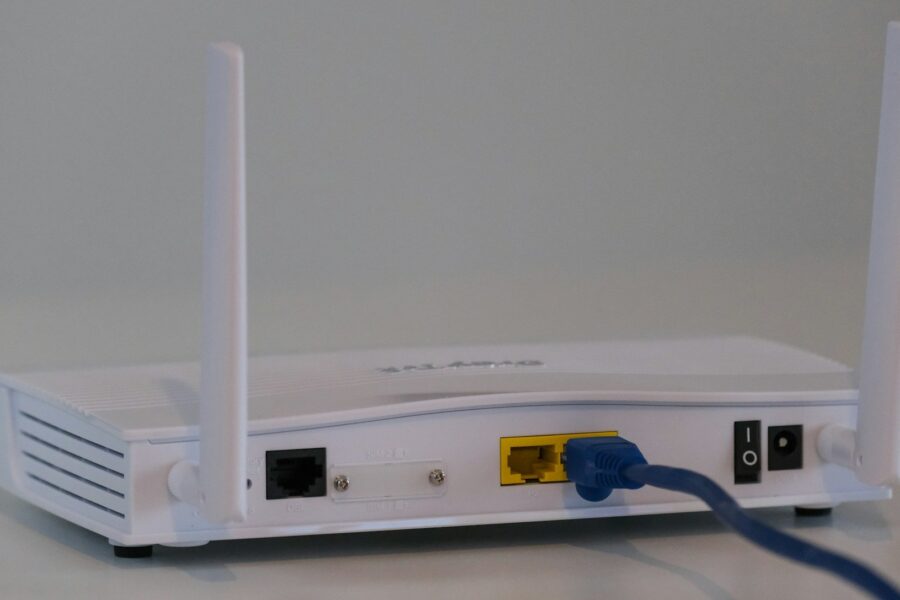
Your WiFi drops every 3–5 minutes. Or it dies the second the microwave kicks on. Or your phone loses the connection while your laptop sits there fine. I’ve seen all three — walked into neighbors’ houses, crawled behind entertainment centers, stood in corners waving a phone around like a divining rod. Nine times out of ten, the fix takes less than 30 minutes and costs nothing. The other time, it’s a $15 cable or a firmware update. Walk through these checks in order — most of you will find your fix in the first three.
What Causes WiFi to Drop in the First Place
I’ve fixed enough routers to know that the problem almost never starts where people think it does. Everybody wants to blame the ISP or assume the router’s dead. But after 10 minutes of poking around, it’s usually something dumb — the router’s sitting behind a TV, two feet from a microwave, crammed in a cabinet. That’s not a hardware failure. That’s just a bad setup.
WiFi drops fall into three families:
- RF interference and placement. Your router is fighting microwave ovens, baby monitors, cordless phones, neighboring networks, and solid walls for the same sliver of radio spectrum. Bad placement makes every one of those problems worse.
- Router-side config, firmware, or heat. Band steering (“Smart Connect”) bouncing your device between 2.4 and 5 GHz mid-session, outdated firmware with unfixed bugs, or a router that’s overheating on top of the cable box. All common. All fixable.
- Device-side adapter, driver, or power management. Windows will literally power off your WiFi chip to save battery if you haven’t told it not to. Phone firmware bugs and stale drivers cause the same phantom drops.
The order I’m giving you matches likelihood, not difficulty. Start at the top.
Tools and Parts You’ll Need
- WiFi analyzer app — WiFi Analyzer (Android, free) or AirPort Utility in scanner mode (iOS, free from Apple). Shows signal strength, channel congestion, and neighboring networks.
- Ethernet cable — Any Cat-5e or Cat-6 cable long enough to reach from your router to a laptop. Used for the wired comparison test in Step 1.
- Microfiber cloth — For wiping dust off the router vents. Don’t skip this if the unit is older.
- Small flathead screwdriver — Rarely needed. Only if you’re cracking a router casing to clean a particularly clogged vent (most consumer routers are sealed).
- Smartphone with a stopwatch — For timing drop intervals during the wired comparison test.
Parts (buy only if diagnostics point to a need):
- Replacement router antenna — $10–30
- Cat-6 Ethernet cable — $5–15
- New router (last resort) — $60–300
- Mesh add-on node (for dead zones only) — $50–200
See also
If your WiFi outright disconnects (not just drops signal), that older quick-fix guide covers the first-pass router reset path. — If the router itself keeps power-cycling on you, that’s a different beast — heat, PSU, or firmware. — If your speeds tank in the evenings, that’s congestion, not a dropped connection.
How to Fix WiFi That Keeps Dropping — Step by Step
- Run the wired test (rule out the router/ISP). Plug a laptop directly into one of the router’s LAN ports using an Ethernet cable. Let both the wired and wireless connections run simultaneously for 10 minutes — use the stopwatch. If the wired connection stays solid while WiFi drops in parallel, your problem is on the WiFi radio side, not the ISP or modem. If wired also drops, stop here and call your ISP. Everything below assumes wired is stable.
- Move the router off the floor, away from metal, microwaves, and concrete. 2.4 GHz doesn’t punch through brick or concrete walls, and it folds completely when a microwave runs nearby — they share the same spectrum. Get the router elevated: top of a bookshelf works, anywhere with line-of-sight to where you actually sit. Keep it at least 4 feet from microwaves, baby monitors, cordless phones, and metal shelving units. This single step fixes maybe 30% of the cases I’ve seen.
- Reboot the right way. Unplug both the modem and the router from power. Wait 60 seconds — not 10. Plug the modem back in first, and wait until all its lights stabilize (typically 60–90 seconds). Then plug the router back in. This clears the ARP table, forces a fresh DHCP lease, and often clears whatever the router got itself tangled up in. “Have you tried turning it off and on again” is a cliché because it works.
- Open the WiFi analyzer app and check your channel. On 2.4 GHz, there are only three non-overlapping channels: 1, 6, and 11. If every neighbor on your block is sitting on channel 6 — and they usually are, since that’s the default — move to channel 1 or 11 in your router’s wireless settings. On 5 GHz, set your channel width to 80 MHz or Auto. Don’t use 160 MHz; it conflicts with weather radar and your router’s DFS logic will boot you off randomly.
- Turn off Smart Connect / band steering for a week. This is the single most overlooked cause of intermittent WiFi drops. Smart Connect is the feature that automatically decides whether your phone connects to 2.4 or 5 GHz — and switches between them mid-session when it thinks the grass is greener. On a video call, that switch feels like a 10-second drop. Log into your router admin and split the two bands into separate SSIDs: something like “MyWiFi-2G” and “MyWiFi-5G.” Manually connect your devices to the appropriate band and leave them there for a week. If the drops stop, band steering was the culprit.
- Check for a firmware update. Log into your router’s admin panel — usually at 192.168.1.1 or 192.168.0.1 in any browser. Look under System, Administration, or Advanced for a firmware or software update option. Old firmware ships with old bugs that manufacturers have already patched. While you’re in there: if the admin password is still “admin” or “password,” change it now. Default credentials are a security problem, and some ISPs actively scan for them.
- Update the WiFi driver on the device that’s dropping. On Windows, open Device Manager, expand Network Adapters, right-click your WiFi adapter, and click Update Driver. Then go into its Properties, hit the Power Management tab, and uncheck “Allow the computer to turn off this device to save power.” That setting is on by default on most laptops, and it will drop your connection whenever Windows decides it needs to save a few milliwatts. On iPhone or Android, try forgetting the network entirely, rebooting the phone, and reconnecting fresh. It sounds too simple, but it clears cached bad credentials and forces a clean association.
- If only one room drops, the answer is reach — not the router. Open your WiFi analyzer in the room where the problem happens and look at the signal level. If you’re seeing -70 dBm or weaker, the radio signal is just too faint to hold a reliable connection there. A better router in the same spot won’t fix that — physics doesn’t care about specs. What fixes it is a mesh node in the dead zone, a wired access point off a long Ethernet run, or a powerline adapter bridging the gap through your house’s electrical wiring. Don’t spend $200 on a new router to solve a placement problem.
What to Check If It Still Drops
- Heat. Put your hand flat on top of the router. If you can’t comfortably hold it there, the unit is thermal-throttling — it’s slowing itself down to keep from burning out, and that shows up as dropped connections. Move it off the cable box (which also runs hot), clear any objects stacked on top of it, and blow the vents out with compressed air or a dry cloth. If the router is more than 5 years old and running hot, replacement is more cost-effective than nursing it along.
- Power supply. The cheap wall-wart adapter that came with a budget router degrades over time, especially under load. If your router drops during high-traffic moments (streaming 4K, big file transfers), a marginal power supply is a real suspect. If you’ve got a spare 12V DC adapter with the same amperage rating, try swapping it. It’s a $0 test.
- ISP-side line noise. Log into your modem’s status page (usually at 192.168.100.1 on most cable modems). Look for downstream power levels. Healthy range is roughly 0 dBmV to +15 dBmV. If you’re seeing numbers outside that, or if the SNR (signal-to-noise ratio) on any channel looks low, you’ve got a line problem — corroded coax fitting, bad splitter, or a degraded tap on the pole outside. That’s an ISP truck-roll, not a DIY fix.
When to Call a Pro
Three situations where you put down the Ethernet cable and pick up the phone:
- Wired Ethernet also drops, and your modem’s status page shows bad SNR, T3 errors, or T4 errors. That’s a coaxial line issue — corroded fitting, failing splitter, or a problem at the ISP’s tap on your street. You can’t fix the tap. Call the ISP and ask for a line check. They’ll come out for free if the problem is on their side of the demarcation point.
- You smell burning plastic, see sparks, or feel a hot spot on the router body or power adapter. Unplug it immediately, don’t plug it back in, and don’t try to repair it. Replace the unit. A $70 router isn’t worth a house fire.
- You’ve run every step above and drops persist on multiple devices across multiple rooms. At that point, the router or modem hardware itself is failing. If your ISP leases you the modem, call them — most will swap it at no charge if diagnostics confirm it’s the modem. If you own it, a $60–80 replacement router is almost always cheaper than 4 hours of further troubleshooting.
Frequently Asked Questions
Why does my WiFi drop every time the microwave runs?
Microwaves operate at 2.45 GHz — smack in the middle of the 2.4 GHz WiFi band — and they’re not perfectly shielded. When the magnetron fires up, it leaks enough RF to swamp nearby devices on that band. The fix is simple: connect the device that’s dropping to your 5 GHz band instead. If you’ve got Smart Connect enabled, split your SSIDs and manually put the problem device on 5 GHz only. Distance helps too — even getting the router 10 feet further from the microwave makes a measurable difference.
My WiFi works fine but my phone keeps disconnecting — is the phone broken?
Almost certainly not the hardware. The two most common causes are band steering (Smart Connect bouncing the phone between 2.4 and 5 GHz mid-session, which looks like a drop) and the phone’s own WiFi power-saving mode putting the radio to sleep when the screen turns off. For band steering, split your SSIDs as described in Step 5. For power saving, dig into your phone’s battery or network settings and disable WiFi power optimization — it’s labeled differently by manufacturer, but it’s there on every Android. iPhones handle this better by default, but forgetting and re-joining the network often clears ghost association issues.
How old is too old for a WiFi router?
Five years is the practical cutoff for most consumer-grade hardware. Electrolytic capacitors start to degrade around that age, firmware support typically ends (meaning no more security patches or bug fixes), and the WiFi standard the hardware was built around is probably two generations behind. Wi-Fi 6 and 6E handle the number of devices in a modern home much better than an old Wi-Fi 5 box — more simultaneous streams, better congestion management. If your router is pushing 7–8 years old, stop troubleshooting it and replace it.
Will a mesh system fix my dropping problem?
Only if reach is the root cause. Pull up your WiFi analyzer in the spot where drops happen. If signal is at -70 dBm or worse, yes — a mesh node will cut that gap and stabilize the connection. But if you’re sitting at -50 dBm (strong signal) and still dropping, mesh won’t help. You’ve got a config issue — band steering, channel conflict, firmware, or power management — and throwing more hardware at it just adds more devices to misconfigure. Fix the config first. Buy mesh only if the analyzer tells you it’s a reach problem.
Sources
- FCC — Consumer guide on RF interference
- ASUS Official — WiFi disconnection FAQ
- TP-Link Support — Router connection troubleshooting
- CISA — Securing wireless networks (and why default admin passwords matter)
Our Point of View
After seeing this problem enough times, here’s what I know: 80% of WiFi drops are not hardware failures. They’re placement mistakes, band-steering misconfigs, or a microwave sitting three feet from the router. People throw $150 at a new router and the problem comes right back because they moved the same bad setup to a slightly newer box. Don’t spend a dollar until you’ve finished the diagnostic. If you do need to spend money, spend it on a mesh node to cover a dead zone — not on a fancier router to fix a problem that’s actually about where you put it. Diagnose first. Buy second. The fix is almost always free.
Editorial Review & Transparency
This article was reviewed by our editorial desk for accuracy. John Fix is verified at LinkedIn. Sources are linked inline and listed above. We update articles when new information becomes available. Last reviewed: May 12, 2026.

John Fix
Master handyman with 20+ years on home repair, small engines, and the wiring closet — the kind of guy who fixes it himself first, then tells you how he did it.
FixItWhy Score: 8.6 / 10 — High-confidence diagnostic guide drawn from manufacturer support docs, FCC interference guidance, and 20+ years of John’s hands-on repair experience.
Disclaimer
The views, opinions, and analysis expressed in this article are solely those of the author and FixItWhy Media. They do not constitute professional advice — whether legal, financial, medical, or otherwise. You are free to agree or disagree with our perspective.
This content is provided for informational and editorial purposes only. We make no representations or warranties of any kind, express or implied, about the completeness, accuracy, reliability, or suitability of the information contained herein. Any action you take based on the information in this article is strictly at your own risk.
If the subject matter involves financial decisions, health concerns, legal matters, home safety, or any regulated activity, we strongly recommend consulting with a qualified licensed professional before taking action. FixItWhy Media and its authors accept no liability for any loss, damage, or injury arising from the use of this information.
© FixItWhy Media. All rights reserved.